
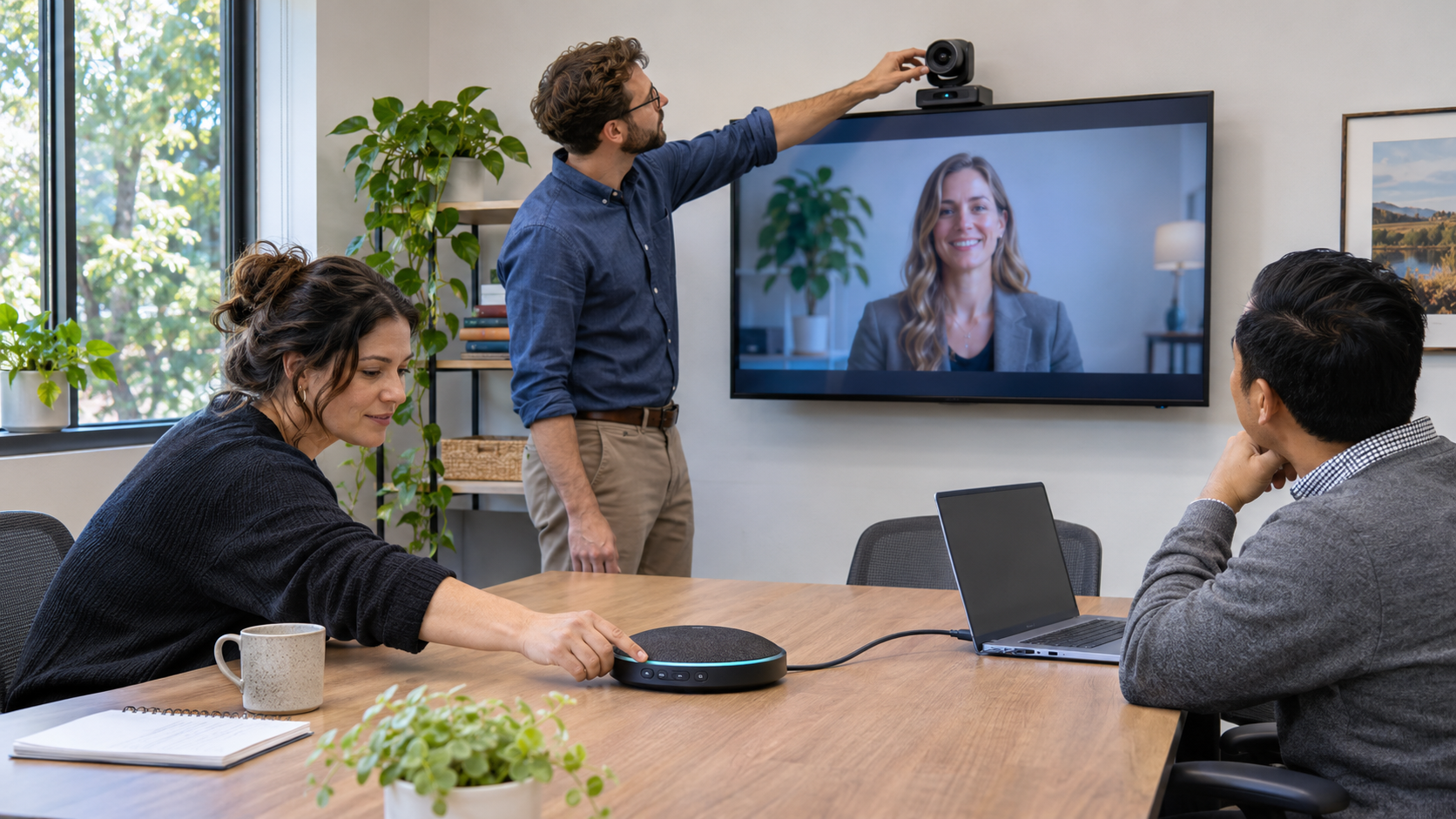
A hybrid meeting can lose the room before anyone says hello: the display works, but remote guests can’t hear the people at the table. Or the audio is fine until somebody joins from a laptop and the echo starts.
Replacing the conference-room equipment may not be the first answer. A short, repeatable test can show whether the problem is a device selection, a cable, the room layout, or something that needs an IT review.
Use a spare account or a colleague at another location to join a short call. Check that both sides can hear and see each other, and share one sample slide. A quick test catches the familiar “we’ll fix it as we go” scramble before a customer or staff meeting.
In Microsoft Teams, open device settings and confirm the intended microphone and speaker are selected. Microsoft’s support guidance includes a test-call option so you can hear a short recording back. Check the room device itself too: a connected speakerphone or room system should be powered on and available.
If the room speakerphone is carrying the meeting audio, avoid leaving a second laptop microphone or speaker active nearby. Microsoft’s Teams room-planning guidance recommends a single audio source for a space to avoid meeting audio issues, and says microphone and speaker coverage should reach the room’s seats. This is a useful design principle even when you are not using a dedicated Teams Room.
Test from the edge of the table, not just beside the console. Ask the remote participant whether the voice is clear and whether they hear room noise or echo. Then listen to the far end of the room. If one seat is consistently hard to hear, the microphone’s position or coverage may not fit the room.
Connect the same way employees do on a normal day: room console, USB-C adapter, HDMI cable, or wireless sharing. Confirm that the display shows the intended screen and that private notes or unrelated windows are not being shared. Label the working connection and keep the correct adapters where people can find them.
Confirm that the room system can reach the services it needs and that the room calendar or meeting join control is current. Microsoft’s Teams network planner is designed to help IT teams estimate network needs using the organization’s sites and expected Teams usage. If meetings fail only in one room or at busy times, record when it happens and ask IT to review that location’s network path.
Write a short room card with the steps that work: how to wake the system, connect a laptop, choose room audio, share content, and call for help. Add the device names, cable type, and room owner. Retest after equipment, software, or network changes.
If the test keeps failing, look for a pattern before buying new gear: does it affect one seat, one type of call, one laptop, or every meeting? That detail helps your IT team distinguish a device issue from room design, account, or network setup. If the room has grown through one-off add-ons, take an inventory of the screen, camera, microphones, speaker, cables, and control method before replacing anything.
Technic’s Managed IT team supports office and remote teams with everyday technology help and planning. Talk with the team about reviewing recurring meeting-room issues and the workplace technology your employees depend on.
App settings and room-system features vary by device and software configuration. Check the guidance for the equipment installed in your space.

